I intended this website to act as a “showcase” for different personal projects I’ve worked on, and over time it’s grown to have a small but decent collection of posts and images. The longer this goes on, the more I realize I want to ensure I’m protected against data loss and have the ability to migrate the site to a different VPS service.
So, keeping in the theme from the last SSH Key Updates with Jenkins and Ansible post, let’s use Jenkins to provide automated backups of this WordPress instance!
Current Backup State
While it’s not automated, I have been keeping backups of the site, although it’s a bit of a manual process. Let’s take a look at what steps that entails currently, and then we’ll move into the automation side of things.
The WordPress site is deployed using a Docker container published by the WordPress team, backing up the site really means just making copies of 3 items:
- The MySQL database containing site/post data
- A list of themes and plugins currently installed
- The media/image uploads from each post
Database Backup
Backing up the database is a simple operation using mysqldump, and I have a script to execute said backup:
docker exec \
        projects-db mysqldump \
        --defaults-extra-file=/mysqlpassword.cnf \
        -u projects \
        --databases projects \
        --single-transaction \
        --quick \
        --lock-tables=false \
        --no-tablespaces \
        > ./backup/db.sql

Code language: Bash (bash)
That --defaults-extra-file is where the MySQL password is defined. Running this command generates a db.sql dump located in a backup directory.
Themes and Plugins
To back up themes and plugins, we don’t want to actually store or version control the plugin/theme files themselves. These are downloaded from WordPress’ theme/plugin repositories and can be restored by just tracking what theme/plugin is active and in use.
Obviously if I was utilizing a custom plugin, or making code changes to said plugins/themes(/or the WordPress core itself) those would need to be version controlled. But in it’s current state, at time of writing, everything is out-of-the-box WordPress.
This script will use the wp CLI utility to read out the list of themes and plugins currently installed, saving them to respective JSON files also located in the backup directory:
# Export plugin list to JSON format
docker exec projects wp --format=json plugin list > ./backup/wp-plugins.json

# Export theme list to JSON format
docker exec projects wp --format=json theme list > ./backup/wp-themes.json
Code language: Bash (bash)
When restoring or testing the backup, these two JSON files can be used in conjunction with the wp CLI tool to restore the themes and plugins, reading from these files.
Creating an Archive
Now we’ve got our database dump, our metadata about the WordPress install itself, and there’s no real intermediate step for backing up media (images, uploads, etc), we just need to add it to an archive that represents the current state of the site.
This next script does just that:
tar -czf ./backup/backup.tar.gz \
    -C ./backup db.sql wp-plugins.json wp-themes.json \
    -C ./../html/wp-content uploads
Code language: Bash (bash)
It creates a backup.tar.gz file, adding the database dump and two metadata JSON files, along with grabbing the entire contents of the uploads directory.
The backup archive can now be copied down to a local machine or backup storage location via SCP! But this is still an automated process, requiring me to SSH into the VPS and run a couple of scripts. It would be nice if this was automated and scheduled…
Let’s Automate
Packaging Up the Scripts
Automating this process is pretty simple, really we just need some process (Jenkins in this case) to connect to the VPS over SSH and run the 3 scripts, then download the created backup archive. Setting up a Jenkinsfile to do so was pretty simple, let’s run through the steps it takes!
        stage('Package Scripts') {
            steps {
                script { env.LAST_STAGE = 'Package Scripts' }
                sh """
                    tar -czf scripts.tar.gz -C ./scripts .
                """
            }
        }

        stage('Upload scripts to remote') {
            steps {
                script { env.LAST_STAGE = 'Upload scripts to remote' }
                sshagent(credentials: ['saturn-ssh-key']) {
                    sh """
                        scp scripts.tar.gz admin@$HOST:~/projects/
                    """
                }
            }
        }
Code language: Groovy (groovy)
The scripts that are to be run are stored in Gitea (which also includes the Docker configurations and other supplemental files), but my VPS does not connect directly to Gitea. So we first need to tar the scripts, then push them up to the VPS. This ensures that if the scripts are updated, the latest version is always used.
Archiving and Download the Backup
Next we need to run these scripts, then create the backup archive.
        stage('Extract scripts on remote and run backup operations') {
            steps {
                script { env.LAST_STAGE = 'Extract scripts on remote and run backup operations' }
                sshagent(credentials: ['remote-ssh-key']) {
                    sh """
                        ssh admin@$HOST '
                            cd ~/projects && \
                            rm -rf ./backup && \
                            rm -rf ./scripts && \
                            mkdir ./backup && \
                            mkdir ./scripts  && \
                            tar -xzf scripts.tar.gz -C ./scripts && \
                            rm scripts.tar.gz && \
                            echo "Running db-backup.sh" && \
                            sh ./scripts/db-backup.sh && \
                            echo "DB backup complete" && \
                            echo "Running metadata-backup.sh" && \
                            sh ./scripts/metadata-backup.sh && \
                            echo "Metadata backup complete" && \
                            echo "Compressing backup archive" && \
                            sh ./scripts/compress-backup.sh && \
                            echo "Backup compression complete"
                        '
                    """
                }
            }
        }
Code language: Groovy (groovy)
This block does most of the heavy lifting, we clean up any lingering backup/scripts directories, extract the scripts archive, and run each of the 3 scripts necessary to create our backup.
Now we need to download and store the backup somewhere it’s actual useful.
        stage('Download remote backup') {
            steps {
                script { env.LAST_STAGE = 'Download remote backup' }
                sshagent(credentials: ['remote-ssh-key']) {
                    sh """
                        scp admin@$HOST:~/projects/backup/backup.tar.gz ./backup.tar.gz
                    """
                }
            }
        }

        stage('Move backup to long term storage') {
            steps {
                script { env.LAST_STAGE = 'Move backup to long term storage' }
                sh """
                    timestamp=\$(date +%Y%m%d-%H%M%S)
                    filename=backup.\${timestamp}.tar.gz
                    mv backup.tar.gz \${BACKUP_DIR}/\${filename}
                    echo "Backup placed in \${BACKUP_DIR}/\${filename}"
                    echo "\${filename}" > .backup_name
                    echo "\${BACKUP_DIR}/\${filename}" > .backup_path
                """
            }
        }
Code language: Groovy (groovy)
Cleanup
We don’t want to leave lingering backups and files on the remote server. It eats up space and just gives one more thing for someone nefarious to poke around at if something wasn’t set up or configured correctly! So let’s ensure we remove the backup files:
        stage('Clean up remote files') {
            steps {
                script { env.LAST_STAGE = 'Clean up remote files' }
                sshagent(credentials: ['remote-ssh-key']) {
                    sh """
                        ssh admin@$HOST '
                            cd ~/projects &&
                            rm -rf ./backup &&
                            rm -rf ./scripts
                        '
                    """
                }
            }
        }
Code language: Groovy (groovy)
Prune Old Backups
I also don’t want to keep backups perpetually, we should only keep a set number of backups to restore. So let’s look at how many we currently have and remove any ones older than that. Currently I’m saving the last 7 backups (which, itself, might be pretty overkill!)
        stage('Prune Old Backups') {
            steps {
                script { env.LAST_STAGE = 'Prune old backups' }
                sh """
                    # Keep only the X newest backup.tar.gz files
                    ls -1t $BACKUP_DIR/backup.*.tar.gz | tail -n +$BACKUP_COUNT | xargs -r rm --

                    echo "Pruned old backups. Current backups:"
                    ls -1t $BACKUP_DIR/backup.*.tar.gz
                """
            }
        }
Code language: Groovy (groovy)
Notify
Last, but not least, it would be handy to know this process is running smoothly (or if errors do pop up). So let’s use Jenkins’ post operations to send a notification to myself
    post {
        success {
            withCredentials([string(credentialsId: 'apprise-telegram', variable: 'APPRISE_TOKEN')]) {
                sh '''
                apprise -b "WordPress backup SUCCESSFUL 🎉

Backup File: ${BACKUP_NAME}
Size: ${BACKUP_SIZE_HR}
Jenkins URL: $BUILD_URL" $APPRISE_TOKEN
                '''
            }
        }
        failure {
            script {
                def logLines = currentBuild.rawBuild.getLog(20).join('\n')
            }

            withCredentials([string(credentialsId: 'apprise-telegram', variable: 'APPRISE_TOKEN')]) {
                sh '''
                    apprise -b "❌ Projects WordPress backup failed!

Stage: ${LAST_STAGE}
Build: ${BUILD_URL}

Last 20 Log Lines:
${logLines}
                    " $APPRISE_TOKEN
                '''
            }
        }
    }
Code language: Groovy (groovy)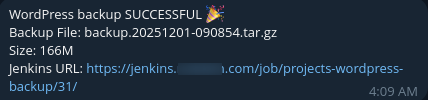
This results in a notification being dispatched via an Apprise token that notifies me on a chat program. If the process fails it will similarly notify me, including the Jenkins URL and the last 20 log lines to hopefully give some very quick idea of what’s going wrong.
Triggering
The job is triggered via a CRON schedule in Jenkins, defined in the Jenkinsfile as well
    triggers {
        cron('H 9 * * 1')
    }
Code language: Groovy (groovy)
This runs the job every week on Monday at roughly 9am.
Conclusion
And with that we have automated WordPress backups! This system has been working pretty reliably for the past few weeks and has given me a much stronger peace of mind for ensuring I have backups.
In the near future I’d like to improve the pipeline just a little bit, I want to have Jenkins extract the backup and verify everything is in there correctly. Possibly even standing up a “dev” clone of the site to ensure things are working.